Construction tasks you can execute correctly — and accept objectively

Buildmetrics turns a short work description into a step-by-step technological plan: instructions, acceptance criteria, evidence, dependencies and inspection checkpoints. Every participant works in their own language.

Pilot program — Moldova · Romania · Türkiye

One task — three workflows

From description to accepted work

The same task, three perspectives: the administrator prepares it with AI, the executor works through the stages on site, the inspector accepts the result by checkpoints.

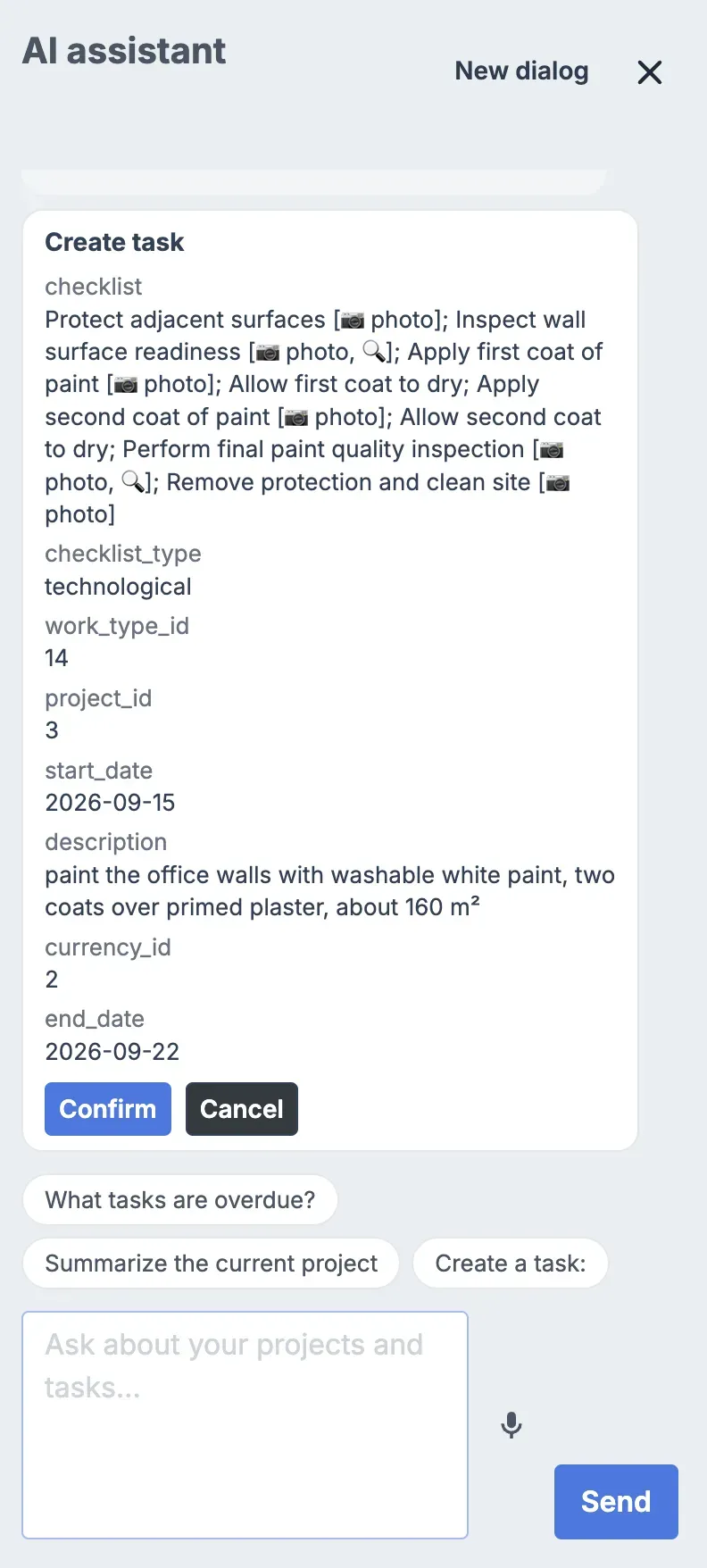
AI assistant — draft with confirmation
1 · Administrator

Prepares the task with AI

Describes the work in their own words. AI asks clarifying questions and drafts the technological plan — the administrator edits and publishes it.

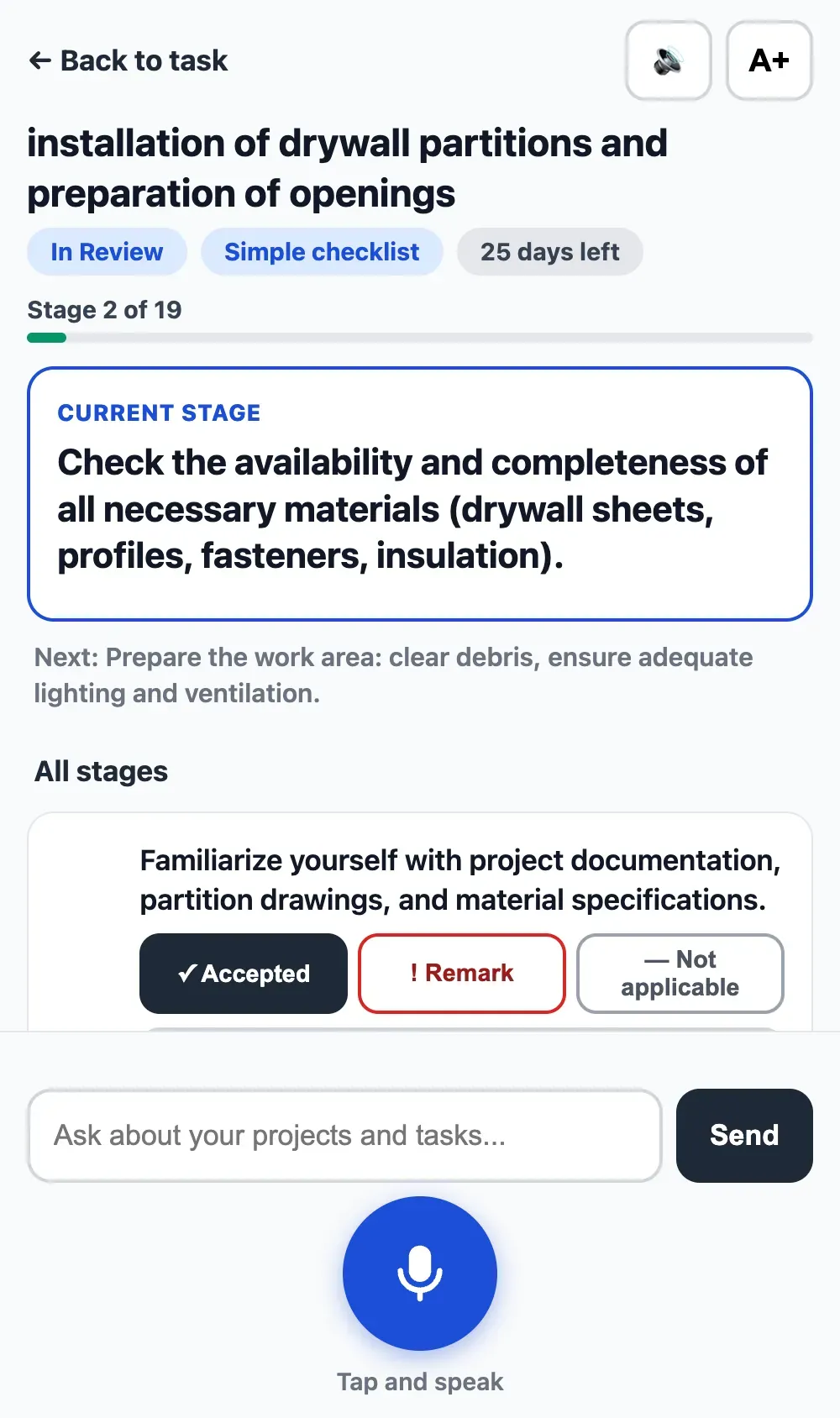
Field mode — current stage
2 · Executor

Executes stage by stage

Works through the stages in field mode: instruction, one-tap check-off, photo evidence straight into the stage. A blocked stage explains what it is waiting for.

Inspector walk-through on site
3 · Inspector

Accepts by checkpoints

Checks only the inspection checkpoints: accepts an item, leaves an issue with a fix-by date, or marks it not applicable.

The general contractor, customer and supplier join at their own steps — see the roles below.

AI assistance

AI prepares the task — the decision stays with you

Describe the work in a couple of phrases. AI asks clarifying questions and drafts a technological plan stage by stage — with instructions, acceptance criteria, required evidence and inspection checkpoints — then runs it through a quality check.

AI clarifying questions before drafting the technological plan

Questions instead of guesses

When the description is not enough, AI asks — it doesn’t invent. Missing details become questions, not wrong assumptions in the plan.

A technological plan, stage by stage

One plan instead of scattered checklists: instructions, acceptance criteria, evidence requirements and inspection checkpoints — drafted from your description and answers.

Quality gate before publication

The draft is checked for gaps and unclear points, and open questions are flagged. The executor doesn’t see the task until the administrator publishes it.

AI drafts, people decide: the administrator reviews, edits and publishes the plan. Nothing is created or changed without a human confirming it.

And it’s not only drafting — an assistant on every page

Creates tasks and projects from a description

Write “outlet marking and wall chasing” in the chat — the assistant drafts the task with its stages and shows a confirmation card before anything is created.

Answers questions about the project

“Which tasks are overdue?”, “Summarise the project” — the answer comes back with links to the actual tasks, so you jump straight to them instead of scrolling lists.

Understands voice

Dictate instead of typing: describe work, ask questions and leave comments by voice — right from the site.

Knows the manual

Ask “how do I invite an inspector?” — the assistant answers from the built-in user guide, no digging through documentation.

Technological plan

Not a checklist — a technological plan

Every stage carries what to do, how to prove it and where the inspector checks. The executor sees their stages, the inspector — their checkpoints. Nothing is lost between “done” and “accepted”.

Work phase · Instruction · Acceptance criteria · Required evidence · Dependency · Safety warning · Inspection checkpoint
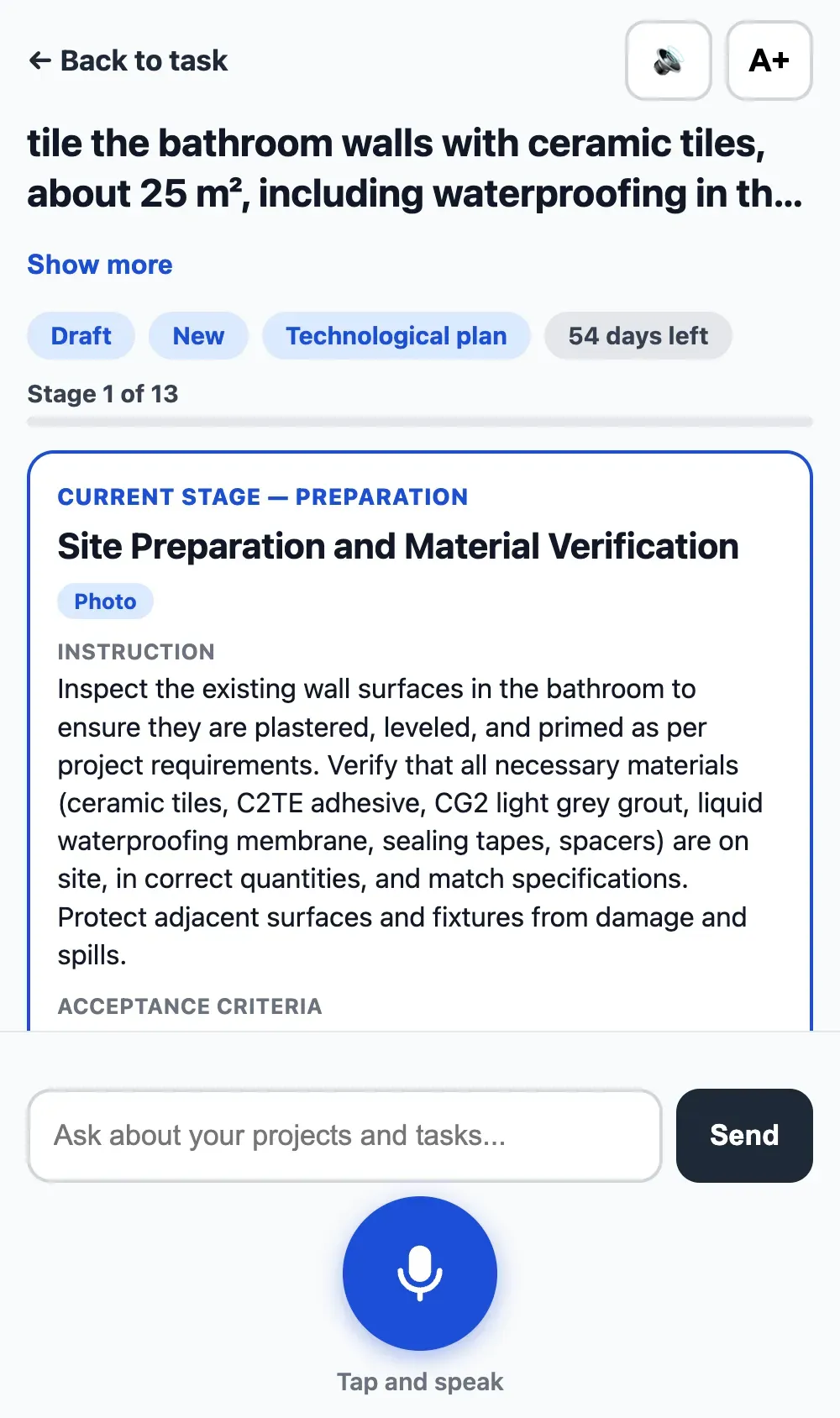
Stages of a real technological plan

This plan was drafted by AI from a two-line description — and reviewed by the administrator before publishing.

Field mode

Built for the site, not the office

Buildmetrics runs in the browser on any phone — no installation. On site, the executor gets large stages, voice input and photos straight into the stage.

  • The current stage and progress — on the first screen, no scrolling
  • One-tap check-off
  • A blocked stage explains what it is waiting for
  • Photos go from the camera straight into the stage
  • Voice check-off and voice material requests — hands stay free
  • A “N days left” badge keeps the deadline in sight
  • No installation — send a link, start working
Current stage
Current stage
Blocked stages
Blocked stages
Evidence & acceptance

“Accepted” means proven

Every disputed item is closed with evidence and an inspector decision — not a verbal agreement. Issues get a fix-by date and stay in the history.

Executor completes a stage Attaches a photo or document Inspector: accepted / issue / not applicable An issue returns with a fix-by date
Inspector review — a decision per checkpoint

Hold-points block what depends on them

A stage that requires inspection physically locks the stages that depend on it: concrete cannot be poured until the rebar cage is accepted. Not a reminder — the button simply isn’t there.

Early acceptance, stage by stage

The inspector accepts stages one at a time, as they become ready — no waiting for the whole task to be handed over before checking starts.

Inspection can be waived — accountably

Where a check is genuinely not needed, the General Contractor lifts the inspection requirement. Who lifted it, and when, stays in the record.

Concealed works end up in the report

Works that get covered up — rebar, waterproofing, wiring — are added to the handover report automatically, together with their evidence.

Materials & supply

From a site request to delivery — under control

The executor requests materials right from the site — voice works too. The administrator assigns a supplier, and the request moves through clear statuses until the executor accepts the delivery with photos.

Request from the site Confirmation Purchasing Delivery Acceptance on site

A supplier without an account

Send the request as a link — a store manager opens a guest tracking page and updates the statuses, no registration needed.

A cabinet for your regular suppliers

Your own suppliers get a cabinet with every request assigned to them — nothing gets lost between projects.

E-mail alerts and a 24-hour reminder

Every status change goes out by e-mail — and if a request sits unanswered, the system reminds about it after 24 hours.

The supplier sees only their request — not the project, budgets or discussions.

Templates

Typical projects shouldn’t be set up twice

Save a finished project as a template and roll new ones out of it — stages, technological plans and roles included. Individual tasks become templates too, ready to drop into any project.

  • A whole project saved as a template — with its tasks and technological plans
  • A single task saved as a template — insert it into any project
  • Bulk creation: up to 20 projects from one template at a time
  • Search across the template library
  • Starter demo templates are there from day one
Template library
Turnkey apartment finishing
24 tasks · technological plans included
Template
Residence “Morava” — series
12 apartments from one template
12 projects
Electrical installation
Task template · 7 stages
Task
Starter demo templates
available to every new account
Gantt chart

The whole project on one timeline

Switch the task list to a Gantt view: every task is a bar on the timeline, deadlines and sequence visible at a glance.

  • Day, week and month scales
  • Click a bar to open the task behind it
  • One tap switches between list and Gantt
  • Available to the General Contractor, administrator and customer
  • Works on a phone — like the rest of the app
Project plan — Gantt
DayWeekMonth
Earthworks
Foundations
Masonry
Electrical
Finishing
Key difference

Every participant works in their own language

Executors, inspectors and customers each choose their language in settings. Tasks, comments and documents follow — automatically, with one source of truth.

One task — English
One task — English
The same task — Türkçe

Example: one task in four languages

RUAdministrator
Покраска стен — спальня
2 слоя · водоэмульсионная краска
ROCustomer
Vopsirea pereților — dormitor
2 straturi · vopsea lavabilă
TRExecutor
Duvar boyama — yatak odası
2 kat · su bazlı boya
ENInspector
Wall painting — bedroom
2 coats · water-based paint

A Romanian customer, a Russian-speaking administrator, a Turkish crew and an English-speaking inspector — the same task, each reads it natively.

The app interface is available in 10 languages

Everyone picks their own in settings. A Ukrainian crew, a Polish site manager and a German customer can run the same project, each reading it natively — and you pick which of these languages your own teams work in.

  • ENEnglish
  • RUРусский
  • RORomână
  • TRTürkçe
  • UKУкраїнська
  • PLPolski
  • DEDeutsch
  • ESEspañol
  • HUMagyar
  • KAქართული

The list keeps growing: a new language is switched on for your account without an update on your side. This website is published in four languages — that is a separate thing from the app.

Participants & roles

Six roles. One workspace.

Everyone sees what they need — and nothing they shouldn’t.

General Contractor

Creates projects, invites customers, assigns administrators. Sees the whole portfolio.

Administrator

Shapes the technological plan with AI, publishes it, keeps the project moving and issues the project handover report.

Executor

Works through the stages in order — in field mode on site — attaches photo and document evidence, submits work for review.

Inspector

Accepts work checkpoint by checkpoint: approves an item, leaves an issue with a fix-by date, or marks it not applicable. Issues task handover reports.

Customer

Follows progress, reviews handover documents, approves or requests changes.

Supplier

Buys and delivers materials for a specific request. Sees only that request — and can work from a link, no account needed.

Documentation & handover

Every project ends with documents, not arguments

Photos and videos are attached to tasks, every action is logged, and handover reports are issued per task and per project — ready for the customer to approve.

  • Photo & video evidence attached to each stage
  • Checkpoint-by-checkpoint acceptance with the inspector’s decision — in the task history
  • Full activity history — who did what, and when
  • Handover report per task, issued by the inspector
  • Handover report per project, issued by the administrator
  • Concealed works are added to the handover report automatically
  • An AI report per project and per task — a short summary of real progress, saved as a PDF
  • Customer approval or change request — recorded in the same system
Handover Report — Concrete foundations
Task
Concrete foundations · Earthworks and Foundations
Approved
Executor
Oleg Ivanov · photo evidence: 12 files
Inspector
Ion Popescu · issued 22 Jun 2026
Customer decision
Approve
Accepted
Trust & security

Your project data, under control

Role-based access

Each role sees only what it should.

Full audit trail

Every change is logged and attributable.

GDPR-aligned

Personal data handled to EU requirements.

Regular backups

Your project history doesn’t disappear.

Roadmap

What we’re building next

PlannedDeeper AI summaries as project data grows
PlannedNative mobile apps (iOS & Android)
PlannedAI photo analysis for inspections
FAQ

Frequently asked questions

Is the multilingual feature machine translation?

Each participant picks a language in settings; tasks, comments and documents are shown natively to each of them. There is one source of truth — the task — and everyone reads it in their own language.

Which languages are supported?

The app interface is translated into 10: English · Русский · Română · Türkçe · Українська · Polski · Deutsch · Español · Magyar · ქართული. Everyone picks their own, and the list keeps growing — new languages are switched on for your account without an update. This website is published in four languages (EN/RO/TR/RU); that is separate from the app and does not limit it.

What exactly does the Customer see?

Project progress, task statuses, photo evidence and handover reports. Customers approve or request changes — they don’t manage tasks.

How are handover reports created?

Inspectors issue them per task after approval; administrators issue the project-level report when all tasks are done. Both are built from the real work history.

How does AI build the technological plan? Can I edit it?

AI asks clarifying questions and drafts a stage-by-stage plan: instructions, acceptance criteria, required evidence and inspection checkpoints. The draft passes a quality check, then the administrator edits and publishes it — nothing is created without confirmation.

Does the assistant create tasks on its own?

No. It drafts the task or project from your description and shows a confirmation card — nothing is created or changed until you confirm it.

Can I work by voice?

Yes. Dictate task descriptions and questions to the assistant instead of typing — and in field mode, check off stages and request materials by voice.

Does a supplier need an account?

No. A supplier opens the request from a link and updates the statuses on a guest tracking page. With an account, they get a cabinet with every request assigned to them.

Are there project templates?

Yes. Save a project or a single task as a template and reuse it; bulk creation rolls out up to 20 projects from one template at a time. New accounts start with demo templates.

What counts as evidence?

Photos, videos or documents attached to a specific stage. If a stage requires evidence, the executor adds it right there — and the inspector sees it when accepting that checkpoint.

What exactly does the inspector check?

Only the checkpoints marked for inspection. For each one the inspector accepts the item, leaves an issue with a fix-by date, or marks it not applicable. Issues go back to the executor and stay in the history.

Why is a stage blocked?

Stages can depend on each other: a stage opens when the previous ones are done. The executor always sees the reason — which step has to be finished first.

Do executors need training?

No. An executor receives a link, opens tasks in their language, uploads photos and submits for review. Most crews are working within the first day.

Where is our data stored? Is this GDPR-compliant?

Data is handled to EU GDPR requirements, with role-based access, a full audit trail and regular backups.

What does it cost?

Buildmetrics is in a pilot program. Request a demo and we’ll discuss terms that fit your projects.
See Buildmetrics on your project

See Buildmetrics on your project

Leave your contact — we’ll show the platform on a scenario that matches your work.